Creating Views with T-SQL
Introduction
In this tutorial, you will learn what a view is and how to use T-SQL to work with views. We will also discuss some common reasons for creating views and some advantages and disadvantages associated with views. Later, we will learn how to restrict certain data from specific users by setting limitations on the view. Next, we will learn how to create a view that extracts data from multiple tables. Finally, we will learn how to alter and drop views.
A couple points of interest regarding views:
- Views can prevent erroneous manipulation of data in tables by an unsuspecting user.
- Views can also limit how much information a user can access from one or more base tables.
You can often get similar results by creating a stored procedure or CTE, but this tutorial will focus on Views.
Prerequisites
In this tutorial, you’ll work with a test database named "myTestDB" to practice SQL Server concepts safely. Before continuing, make sure you have SQL Server 2022 Developer Edition and SQL Server Management Studio (SSMS) version 18 installed on your system. If you haven’t completed these installations yet, return to the First Steps section and follow Step 1: Install SQL Server 2022 Developer Edition and Step 2: Install SSMS 18 and Connect to SQL Server. Once both installations are complete, come back to this page and continue with the tutorial.
What Is a View?
In this section, we’ll explore the purpose of views in database development, how they fit into SQL Server’s architecture, and the real-world problems they solve. By the end, you’ll understand why views exist — before we dive into how to build them.
A SQL VIEW is a virtual table that is built with a SELECT statement. A view can reference a single table or multiple tables. Views contain rows and columns much like a table. A view can also contain most SQL statements and functions and resemble a table; however, its contents do not exist until you call the view. So, what does that mean? Think of a view as simply that, it's a "view into" or snapshot of some or all of the data in a table.
As we will learn in this tutorial, a view can return (show) data in rows and columns from a single table or multiple tables. This allows you to select, for example, the first and last name from one table and the corresponding department name from another table to display the combined results in a view.
How Views Fit Into Database Architecture
In SQL Server’s object hierarchy, views exist alongside tables, stored procedures, and functions. Conceptually, they sit between the physical data layer and the application or reporting layer.
Typical architecture flow:

Because views store query definitions centrally, they promote consistent query logic across applications, reports, and stored procedures.
What a View Is Not
A SQL Server view is not a physical table, even though it looks and behaves like one when queried. A view does not store data itself. Instead, it acts as a virtual window into data stored in one or more underlying tables. This allows you to quickly retrieve and present data without directly accessing the base tables. In most situations, a view can be queried just like a table, making it a powerful tool for simplifying complex queries and improving database organization. However, views do come with certain restrictions that tables do not have. These limitations are explained in detail in the “Limitations of a VIEW” section below.
In simple terms, a view is a window into your database. It provides a snapshot of selected data without requiring direct access to the base tables. As you’ll see throughout this tutorial, a view can return data from a single table or combine data from multiple tables. For example, you might display an employee’s first and last name from one table alongside their department name from another — all neatly presented through a single view.
Why Use Views? (Benefits Overview)
SQL Server views provide a powerful way to simplify database access and improve query management. Instead of repeatedly writing complex SELECT statements, you can store the logic inside a view and query it as if it were a table. This makes your code cleaner, easier to maintain, and less prone to errors. Views also help standardize how data is retrieved across applications, reports, and users, ensuring consistency in results. From an organizational standpoint, views improve database readability by separating business logic from base table structures — an essential practice for scalable database design.
Another key advantage of views is security and data control. Views allow database administrators to restrict access to sensitive data by exposing only specific columns or filtered rows, without granting users direct access to the underlying tables. This is especially useful in environments where different users require different levels of data visibility. Views can also present combined data from multiple tables in a single, easy-to-query structure, reducing the need for complicated joins in everyday queries. Overall, views enhance security, maintainability, and usability — making them an indispensable tool for efficient SQL Server database development.
Limitations of Views
While SQL Server views are incredibly useful, they do come with important limitations that every database developer and DBA should understand. The most fundamental limitation is that a standard view does not store data. Every time you query a view, SQL Server executes the underlying SELECT statement. If the view is built on complex joins or large tables, querying it can consume the same resources as running the original query directly. This means views improve organization and security, but they do not automatically improve performance.
Another limitation is that not all views are updatable. While some simple views allow INSERT, UPDATE, and DELETE operations, many do not. For example, a view that includes joins, aggregate functions, GROUP BY clauses, DISTINCT, or computed columns usually cannot be updated directly. In such cases, any data modifications must be performed on the base tables instead. This restriction exists to prevent ambiguity about where and how the data should be changed.
Views also depend entirely on their underlying tables. If a base table is renamed, dropped, or modified incorrectly, the view will break. This dependency means schema changes must be managed carefully in environments that rely heavily on views. Additionally, standard views cannot accept parameters like stored procedures can. If you need dynamic filtering based on user input, you must handle it in the calling query rather than inside the view itself.
Finally, while indexed views exist, they introduce their own constraints. Indexed views physically store data and can improve performance, but they require strict settings, additional storage space, and maintenance overhead during data modifications. For most beginner and intermediate use cases, standard views are preferred, but it’s important to understand that views are not a universal solution for every database design challenge.
Creating Views
Why create views in SQL if a view is like a table, but with limitations? Why not just use a table and avoid the hassle of creating a view? There are several good reasons for creating views and not relying on tables alone. A couple of the most prominent answers are security and diverse results. Often, these two reasons work hand in hand. For example, if you needed to get some information from one table and at the same time retrieve additional information from another table that has corresponding data. Creating a view from the two tables will allow you to provide more information to the person querying the view but at the same time limiting what they can see from each table.
For example, your view could return the first and last name of an employee from an employee table and the department name they are associated with from the employee department table, but not returning the employee phone number or email address form the employee table, since that would be considered sensitive information. Now that we have a basic understanding of what a view is used for, let's delve into the process of creating a simple view using T-SQL.
Basic Syntax for Creating a View in SQL
CREATE VIEW view_name AS
SELECT column1, column2, ... View columns
FROM table_name;
The CREATE VIEW statement in SQL allows us to use a SELECT statement to define the parameters of our view. In its simplest form, a view is simply a SELECT statement preceded by the "CREATE VIEW AS" statement as the VIEW definition.
A SELECT statement to query a table (or tables) can, in most cases, be converted into a view. This allows you to query the view instead of writing the SELECT statement each time you need to reference the data in one or more tables.
In the sample code above, we are using a SELECT statement to return column1 and column2 from a table. We can also set some conditions like: within a date range, or an age group, etc. Now, let's create a view for practice.
Let's dive right in and create our first view as you would in a work environment. Here, we will creating a view using the Adventureworks2022 sample database and we will creating the view on the Person.Person table.
First, create a basic query of the Person.Person table, you will notice there are 13 columns in the table, we only want three columns in our view: first name, last name, and email promotion. Below is a sample of what the SELECT statement would look like.
USE AdventureWorks2022;
GO
SELECT
    FirstName
  , LastName
  , EmailPromotion
FROM Person.Person;
GO
Now, let's create a simple view to query instead of writing this SELECT statement over and over each time we need to look at this data.
CREATE VIEW vEmployeeNames
AS
SELECT
    FirstName
    , LastName
    , EmailPromotion
FROM Person.Person;
GO
Notice the only difference between the two code blocks above is that in the second code block, we added the "CREATE VIEW vEmployeeNames AS" line of code at the top. This is followed by our original SELECT statement.
Now, instead of writing this SQL query every time we need to call this information, we simply query the view to get the same results as we did from our original SELECT statement.
SELECT *
FROM vEmployeeNames;
GO
Results: (Partial)
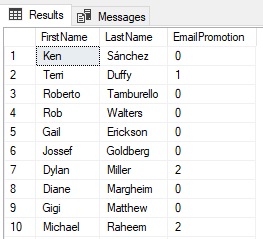
Note: as a general rule of thumb, always start your veiw name with the letter "v" in lowercase. This helps in clarity when trying to find your views and orginizing them and distinguishing them from tables and other SQL objects.
CREATE VIEW from Multiple Tables
In the code block above, we created a simple view based on one table. But what if you need to gather data from multiple tables into a single view? We can do that, and here's how.
Returning specific columns from a table with a simple view is just one option for generating views. Perhaps we need to pull the data from specific columns in one table and related data from certain columns in another table. We can do this by using a JOIN statement in our query.
I won't delve too far into what a JOIN is in this article. Suffice to say that this function works just as it states: it allows the user to "join" two or more tables in a single query. You can read more about the SQL JOIN function in this article Getting Started with SQL INNER JOIN.
In this section of the tutorial, we will be joining two tables found in the AdventureWorks2014 sample database, the Person.Person table and the Person.EmailAddress table.
We are going to retrieve the First Name and Last Name from the Person.Person table and join that information with the Email Address in the Person.EmailAddress table. The benefit of doing this will allow, for example, a manager to find the email address of a certain employee. Let's start with creating the query to do this.
USE AdventureWorks2022;
GO
SELECT
    p.FirstName
    , p.LastName
    , e.EmailAddress
FROM Person.Person AS p
INNER JOIN Person.EmailAddress As e ON p.BusinessEntityID = e.BusinessEntityID;
GO
Before moving forward, let’s briefly review what we just accomplished. We assigned table aliases to make our query easier to read and manage — using "p" for the Person.Person table and "e" for the Person.EmailAddress table. Next, we joined these tables using the BusinessEntityID column, which exists in both tables and serves as the logical link between them. When you execute this query in SQL Server Management Studio (SSMS), your output should match the partial result set shown below.
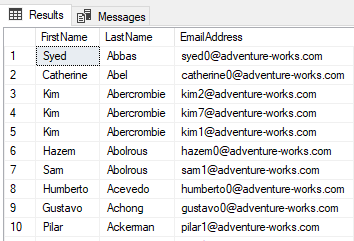
You can probably guess where we are going with this, we are going to use this query to create a view. As we mentioned in the section above, Using T-SQL to Create a Simple View, we will add the code "CREATE VIEW vEmployeeEmail AS" line of code above the SQL query. See the sample code in the following example below.
USE AdventureWorks2022;
GO
VIEW vEmployeeEmail
AS
SELECT
    p.FirstName
    , p.LastName
    , e.EmailAddress
FROM Person.Person AS p
INNER JOIN Person.EmailAddress As e ON p.BusinessEntityID = e.BusinessEntityID;
GO
That's it. Congratulations on creating your first multi-table view. You can join as many tables as you like by simply adding the appropriate tables with aliases and adding more "INNER JOIN ON" lines for each table. The following snapshot shows how adding five tables would look when stacking multiple INNER JOIN statements.
INNER JOIN [Person].[Person] p
ON p.[BusinessEntityID] = e.[BusinessEntityID]
INNER JOIN [Person].[BusinessEntityAddress] bea
ON bea.[BusinessEntityID] = e.[BusinessEntityID]
INNER JOIN [Person].[Address] a
ON a.[AddressID] = bea.[AddressID]
INNER JOIN [Person].[StateProvince] sp
ON sp.[StateProvinceID] = a.[StateProvinceID]
INNER JOIN [Person].[CountryRegion] cr
ON cr.[CountryRegionCode] = sp.[CountryRegionCode]
Notice that this is simply a repetition of the INNER JOIN statement. We'll discuss INNER JOIN statements in a blog later. But feel free to experiment with your sample database.
Naming Conventions and Best Practices
Consistent and meaningful naming conventions are essential for maintaining a clean and easily navigable SQL Server environment. Views often become deeply integrated into applications, reports, and stored procedures. Without a standardized naming approach, managing them can quickly become confusing, especially as a database grows. Establishing clear naming conventions ensures better readability, easier troubleshooting, and long-term maintainability for DBAs and developers alike.
A common best practice is to prefix all view names with vw_ or v_. This immediately distinguishes views from base tables when browsing database objects or writing queries.
VIEW names should follow the same basic guidelines as table names.
- The names must be less than 128 characters.
- Names cannot contain spaces.
- You can have names with a space, but the name must be surrounded by [], but this is NOT a recommended practice
- Names cannot start with a number.
- Names cannot start with most of the special characters such as: @, $, %, etc.
- Names may contain upper-case and lower-case letters.
- This is a preferred naming convention.
- Two of the most popular naming conventions are camel case and pascal.
- Names should be descriptive and should have some indication that it is a view and not a table.
- An example would be, vEmployee, indicating that it's a view of the employee table, or at least parts of the table.
- Names should not be named with reserved keywords or data types.
These are not just suggestions, they are guidelines that must be followed when creating views.
Modifying Views
In SQL Server, modifying a view is done using the ALTER VIEW statement. The syntax is nearly identical to CREATE VIEW, except that it updates an existing view rather than creating a new one.
Basic Syntax
ALTER VIEW schema_name.view_name
AS
SELECT column_list
FROM table_name
WHERE condition;
When SQL Server executes ALTER VIEW, it replaces the existing view definition with the new one. Any permissions previously granted on the view remain intact, which makes ALTER VIEW preferable to dropping and recreating a view in production environments.
Example: Altering an Existing View
Suppose you have an existing view that lists employee names and departments:
Later, you decide the view should also return employee hire dates. You can alter it as follows:
ALTER VIEW dbo.vwEmployeeDepartments
AS
SELECT EmployeeID, FirstName, LastName, Department, HireDate
FROM dbo.Employees;
After execution, the view immediately reflects the new structure. Any queries referencing the view now see the updated column list without needing changes elsewhere in the application.
ALTER VIEW vs. DROP and CREATE
As your database evolves, there will inevitably be times when an existing SQL Server view needs modification. Perhaps new columns must be added, filtering logic adjusted, or joins refined. SQL Server provides two primary methods to update a view’s definition: using ALTER VIEW, or dropping and recreating the view. While both achieve the same end result, they behave differently and each has specific advantages.
Understanding when to use each approach is an important skill for database administrators and developers.
Using ALTER VIEW
The ALTER VIEW statement allows you to modify an existing view without removing it from the database. This method preserves object permissions, dependencies, and references. Because the view never technically disappears, applications, reports, and stored procedures that rely on it remain uninterrupted.
Example:
USE myTestDB;
GO

ALTER VIEW vw_CustomerContacts
AS
SELECT
    p.BusinessEntityID,
    p.FirstName,
    p.LastName,
    e.EmailAddress
FROM Person.Person AS p
JOIN Person.EmailAddress AS e
    ON p.BusinessEntityID = e.BusinessEntityID;
GO
Why ALTER VIEW is preferred:
- Retains existing permissions
- Preserves dependencies
- Prevents application downtime
- Prevents application downtime
For these reasons, ALTER VIEW is considered the best practice method for updating views in most real-world scenarios.
Dropping Views
As databases evolve, some views eventually become outdated or unnecessary. Maybe a reporting requirement changed, a table structure was redesigned, or a view was created for testing and is no longer needed. When this happens, SQL Server allows you to permanently remove a view using the DROP VIEW statement.
Dropping a view deletes only the view definition — not the underlying tables or data. This makes dropping views a safe operation, provided no other database objects depend on the view.
Basic Syntax for Dropping a View
DROP VIEW schema_name.view_name;
Note: If the schema name is not specified, SQL Server assumes dbo by default.
Example: Dropping a View in AdventureWorks2022
Let's start by creating a view to test with using the AdventureWorks2022 database:
USE AdventureWorks2022;
GO

CREATE VIEW vw_PersonEmailList
AS
SELECT
    p.BusinessEntityID,
    p.FirstName,
    p.LastName,
    e.EmailAddress
FROM Person.Person AS p
JOIN Person.EmailAddress AS e
    ON p.BusinessEntityID = e.BusinessEntityID;
GO
When the view is no longer needed, you can remove it with:
USE AdventureWorks2022;
GO

DROP VIEW vw_PersonEmailList;
GO
Explanation:
- USE AdventureWorks2022 ensures you are working in the correct database.
- DROP VIEW permanently removes the view definition.
- The underlying Person.Person and Person.EmailAddress tables remain untouched.
- Any permissions assigned to the view are also removed.
Once dropped, the view no longer appears in Object Explorer, and any queries or stored procedures referencing it will fail until corrected.
Drop Views Using IF EXISTS
If you attempt to drop a view that does not exist, SQL Server will raise an error. To avoid this, modern SQL Server versions support the IF EXISTS clause. We will delve a little deeper into the IF EXISTS statemnet in a future tutorial.
Why this is useful:
- Prevents runtime errors in deployment scripts
- Allows safe re-execution of database setup files
- Commonly used in automated DevOps pipelines
Checking Dependencies Before Dropping a View
Before dropping a view in a production environment, always verify whether other objects rely on it. You can check dependencies with:
EXEC sp_depends 'vw_PersonEmailList';
This returns a list of stored procedures, functions, or other views that reference the view. Dropping a view with active dependencies can cause application or reporting failures.
Managing Views
As databases grow, managing views becomes just as important as creating them. Views are often used by reports, applications, and stored procedures, which means they must remain organized, documented, and easy to maintain. Effective view management in SQL Server ensures better performance, fewer errors, and simpler long-term administration for database professionals..
In this section, you’ll learn how to locate views, inspect their definitions, modify existing views, monitor dependencies, and apply maintenance best practices using the AdventureWorks2022 sample database.
Locating Views in SQL Server
In SQL Server Management Studio (SSMS), views are stored under each database’s Views folder in Object Explorer.
Steps:
- Expand the AdventureWorks2022 database.
- Expand the Views folder.
- All user-created views appear in this list.
System views exist as well, but user-defined views (those created by you or a team member) are the ones you will typically manage. As a general rule, you should not add to, alter, or delete system views.
Viewing a View’s Definition
On occasion, you may need to review the code that makes up a view. If you plan on altering or dropping a view, you really need to examine the code to make sure you’re not altering or dropping something that you didn’t plan on modifying.
To see the SQL code that defines a view, run the following script. This is going to show the code we used to create the vw_PersonEmailList that we created earlier.
USE AdventureWorks2022;
GO

EXEC sp_helptext 'vw_PersonEmailList';
GO
Checking Dependencies
When creating SQL Server views, they are often built from multiple tables rather than a single table. This allows views to combine related data into a single, easy-to-query virtual dataset. However, once a view is created, other database objects—such as stored procedures, functions, reports, or even other views—may rely on it. These relationships are known as view dependencies.
Side Note: A view dependency simply means that another database object references the view. If you modify or drop a view without checking these dependencies, you can unintentionally break queries, reports, or application code that rely on it. For this reason, it’s always a best practice to verify whether other objects depend on a view before altering or removing it. Doing so helps maintain database stability and prevents unexpected errors in production environments.
Before altering or dropping a view, it’s important to check what objects depend on it.
Finding Dependencies for VIEWs
USE myTestDB;
GO

SELECT
    referencing_entity_name,
    referencing_class_desc
FROM sys.dm_sql_referencing_entities ('dbo.vwCustomerNames', 'OBJECT');
Explanation
- Shows which stored procedures, views, or functions reference the view.
- Prevents accidental breaking of dependent objects.
Monitoring View Usage
DBAs may want to know whether a view is actively used. Below is a sample of how to do that.
USE myTestDB;
GO

SELECT
    OBJECT_NAME(object_id) AS ViewName,
    user_seeks,
    user_scans,
    last_user_seek,
    last_user_scan
FROM sys.dm_db_index_usage_stats
WHERE database_id = DB_ID()
  AND object_id = OBJECT_ID('dbo.vwCustomerNames');
Explanation
- Although views don’t have indexes (unless indexed views), SQL Server tracks access patterns.
- Helps identify unused or rarely used views for cleanup.
Best Practices for Managing Views
- Keep view naming consistent (vw prefix or schema-based grouping)
- Document view purpose and dependencies
- Refresh metadata after table changes
- Script views into source control
- Avoid unnecessary nested views (views built on other views)
- Regularly audit unused views
Advantages and Disadvantages of Views
SQL Server views are powerful tools in database design, but like any feature, they come with both benefits and limitations. Understanding the advantages and disadvantages of views is essential for deciding when they are the right solution and when other database objects — such as stored procedures or physical tables — may be more appropriate.
In this section, we’ll explore how views improve security, simplify query logic, and create clean data abstraction layers — as well as the potential performance and maintenance challenges they introduce.
Advantages of Views
1. Simplify Complex Queries
Views allow you to store complex joins and calculations in one place and reuse them repeatedly.
Instead of writing the same multi-table query multiple times, users can simply query a view.
Example:
USE myTestDB;
GO

CREATE VIEW dbo.vwCustomerOrders
AS
SELECT
    c.CustomerID,
    c.FirstName,
    c.LastName,
    o.OrderID,
    o.OrderDate
FROM dbo.Customers c
JOIN dbo.Orders o
    ON c.CustomerID = o.CustomerID;
GO
Explanation:
- The join logic is stored once in the view.
- Any report or application can now run:
SELECT * FROM dbo.vwCustomerOrders;
This improves consistency and reduces query-writing errors.
2. Provide Logical Data Abstraction
Views act as a stable interface between physical tables and applications. If table structures change later, the view can be updated without breaking external applications.
This abstraction layer is a fundamental best practice in professional database architecture.
3. Improve Database Security
Views allow DBAs to restrict data access without exposing base tables.
Example:
USE myTestDB;
GO

CREATE VIEW dbo.vwPublicCustomers
AS
SELECT CustomerID, FirstName, LastName
FROM dbo.Customers;
GO

GRANT SELECT ON dbo.vwPublicCustomers TO PublicUser;
Explanation:
- Users can see names but not emails or sensitive columns.
- No direct table access is required.
- This is one of SQL Server’s recommended security patterns.
4. Encourage Code Reusability
Once defined, a view can be reused by:
- Applications
- Stored procedures
- Reports
- Other views
This promotes consistent business logic throughout the database environment.
5. Provide Cleaner and More Readable Code
Views make queries easier to understand by hiding low-level join and filter details behind meaningful object names.
This is especially helpful in large enterprise databases where dozens of tables may be involved in a single report.
Disadvantages of Views
While views are extremely useful, DBAs must be aware of their limitations.
1. Potential Performance Overhead
A view does not store data — every query against a standard view executes the underlying SELECT statement. Complex views, especially nested views (views built on other views), can produce inefficient execution plans.
2. Dependency Management Complexity
Views depend on underlying tables and sometimes other views. If a base table column is renamed or dropped, dependent views can break.
This requires DBAs to carefully track dependencies before schema changes.
3. Not Always Updatable
Many views cannot be used for INSERT, UPDATE, or DELETE operations, especially if they contain:
- Joins
- Aggregations
- DISTINCT clauses
- GROUP BY
This limitation sometimes forces developers to use stored procedures instead.
4. Hidden Complexity
Because views abstract logic, developers may not realize how complex the underlying query is. This can lead to unexpected performance issues when a simple SELECT * FROM view actually triggers multiple joins and calculations.
5. Indexed Views Have Special Requirements
Indexed (materialized) views can improve performance but require:
- WITH SCHEMABINDING
- Specific SET options
- Unique clustered index
These restrictions add complexity and maintenance overhead.
Quick Comparison Table
| Feature | Advantage | Disadvantage |
|---|---|---|
| Query Simplification | Hides complex joins | Can hide expensive logic |
| Security | Restricts data exposure | Requires dependency tracking |
| Abstraction | Protects apps from schema changes | Adds maintenance responsibility |
| Performance | Indexed views can improve speed | Standard views don’t store data |
| Reusability | Centralized logic | Changes affect all dependents |
Best Practice Summary
Use views when:
- You need simplified query access
- You want to restrict data visibility
- You need stable interfaces for applications
Avoid views when:
- Queries are extremely complex and performance-critical
- Heavy aggregations are required repeatedly
- Logic belongs in procedural operations
Why This Matters to DBAs
Knowing when to use — and when not to use — views is a key skill in designing efficient, secure, and maintainable SQL Server environments. Proper use of views leads to cleaner architecture. Poor use of views leads to performance and maintenance headaches.
Key Takeaways
After completing this tutorial, you now understand how to design, create, modify, and manage SQL Server views using T-SQL. You learned that views act as virtual tables built on SELECT statements, allowing you to simplify query logic, control data exposure, and present combined results from one or multiple tables without granting direct access to base data.
Specifically, you learned how to:
- Define what a SQL Server view is and where it fits in database architecture.
- Understand what a view is and is not, including its virtual nature.
- Recognize why views are used for security, abstraction, and query simplification.
- Create simple views from a single table using CREATE VIEW.
- Build multi-table views using JOIN statements.
- Apply naming conventions and best practices for consistent view management.
- Modify existing views using ALTER VIEW while preserving permissions.
- Safely remove views using DROP VIEW and IF EXISTS.
- Check dependencies before altering or dropping a view.
- Locate, inspect, and monitor views inside SSMS.
- Understand advantages and disadvantages of views, including performance and maintenance considerations.
- Apply proper view management techniques as databases grow.
At this point, you have a complete working knowledge of SQL Server views — from concept and design to implementation and maintenance — giving you the skills needed to build secure, reusable, and well-structured database query layers.