Install SSMS ver. 18
and Connect to SQL Server
Introduction
Okay, I have SQL Server installed, now how do I use it?
Microsoft has developed an IDE utility to manage and configure SQL Server. This tool is known as SQL Server Management Studio or SSMS for short.
Although you don’t need SSMS to work with databases, tables, etc. in SQL Server, the SSMS provides an easy-to-use GUI (General User Interface) to work with.
You can do all your work from the command prompt, but sometimes this can get confusing for most DBA’s. It’s best to stick with using the provided tool: SSMS.
In this article, we will walk through, with pictures, each of the steps to install SSMS and connect to a SQL instance.
Prerequisites
You must have a instance of SQL Server installed prior to installing SQL Server Management Studio. (SSMS)
If you need to install SQL Server, refer to the article Installing SQL Server
 SQL / T-SQL is not case sensitive.
You may use all upper-case, all lower-case, or any combination you choose.
Installing Microsoft SQL Server Management Studio (SSMS)
To get started, download Microsoft SQL Server Management Studio (SSMS) directly from the official Microsoft website using the link below.
Download SQL Server Management Studio (Version 18.12.1)
After the download has completed, navigate to the folder where SSMS downloaded, right-click on the installation file SSMS-Setup-ENU.exe and select "Run as administrator" to launch the SSMS installer.
The installation process of SMSS is straightforward and easy, but you need to follow the screen sequence below.
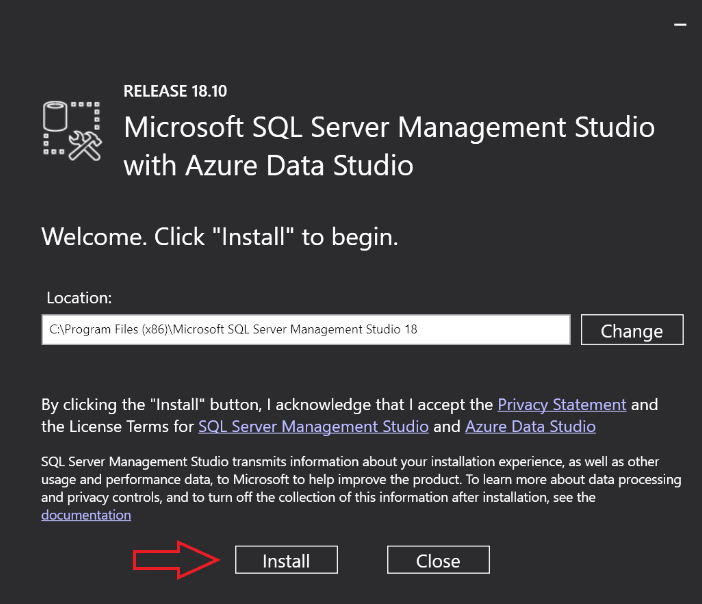
Step 1
Click the Install button.
Step 2
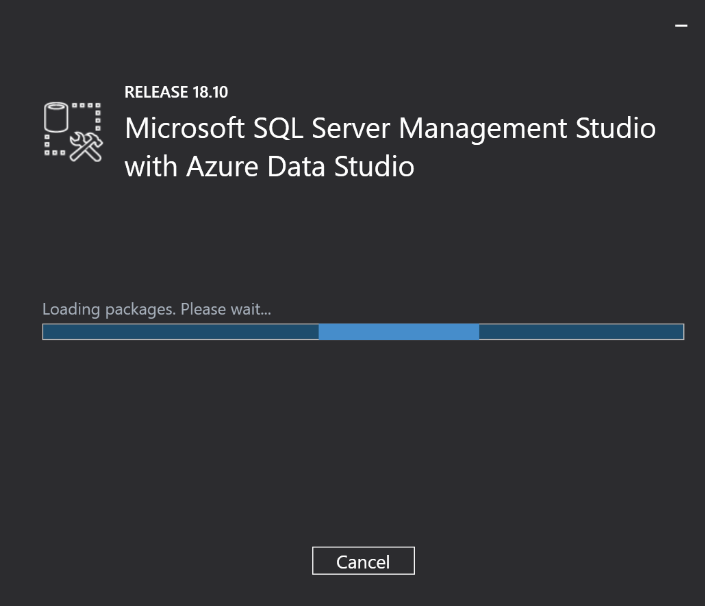
Wait for a few minutes while the installer sets up the software:
On your screen you should see a dialouge box like the one below.
Step 3
Once setup is completed, click the Close button:
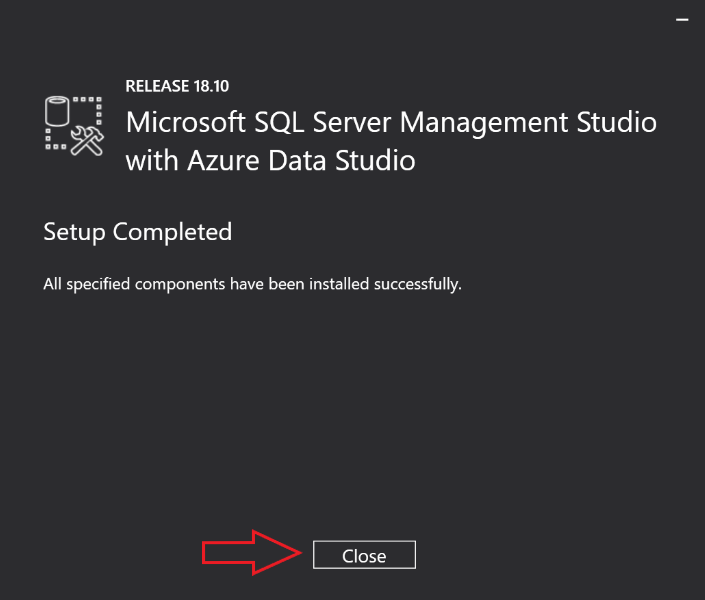
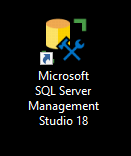
Now, you should have SQL Server 2022 and SQL Server Management Studio installed on your computer and a SSMS icon should have appeared on your desktop.
Here's a sample image of what the desktop icon should look like.
Setting Up SSMS
Double click on the destop icon to start SSMS.
When the app starts, you should see something like the image below.
Note: don't worry if yours does not look exactly like the one in the image.
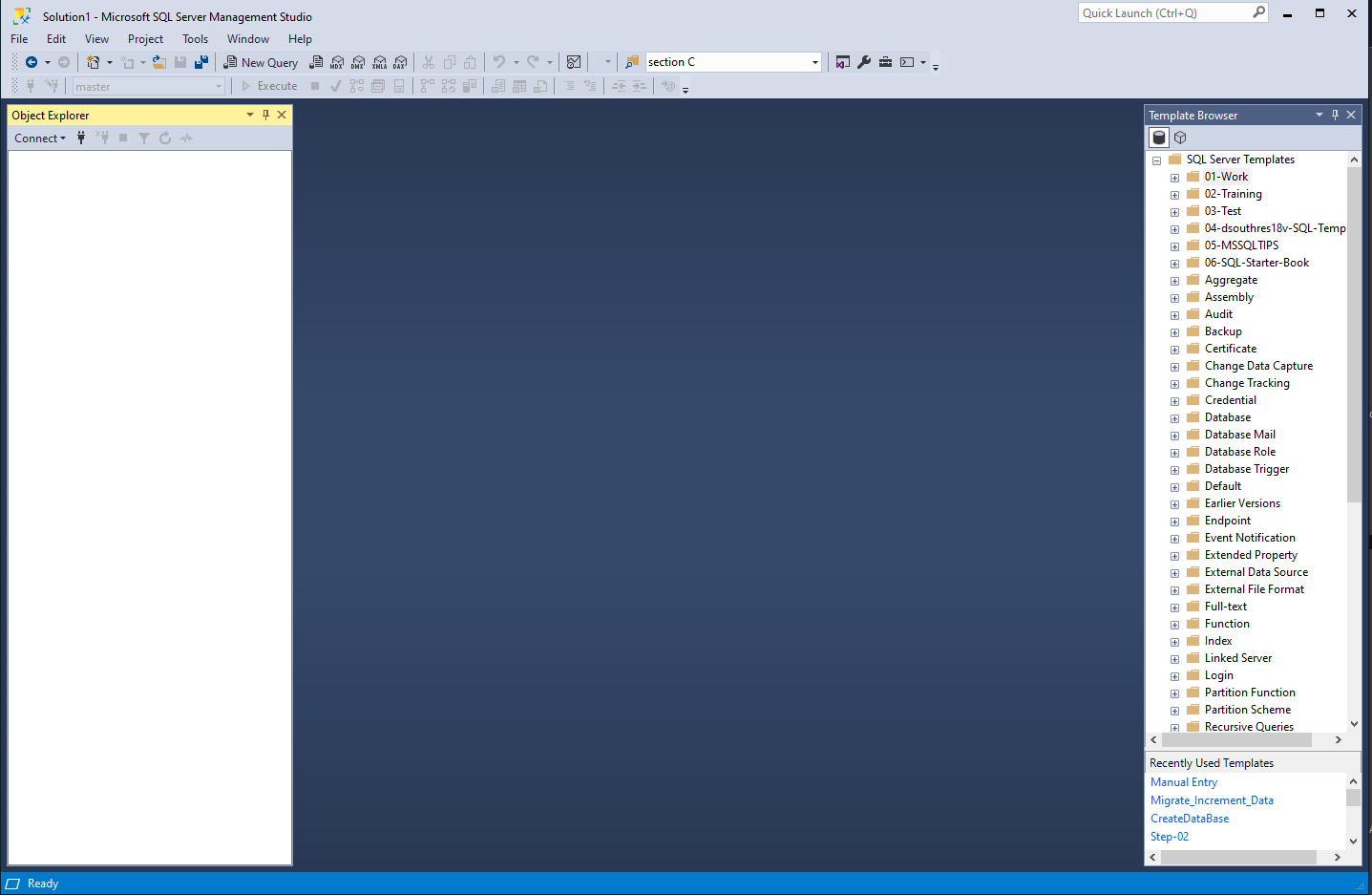
Here's a quick breakdown of the SSMS app.
The Left column displays the Object Explorer. This will list your databases once you have connected to an SQL Server instance. More on that in a sec.
The Center column will be your query editor. This is where you will write all your SQL queries to work with your database.
The Right collumn shows your Template Browser. This will show a list of all the preloaded templates and any templates that you may create.
Here's a great starting point to learn more about the SSMS user interface.
SQL Server Management StudioStep 5
Connecting to a SQL Server Intance:
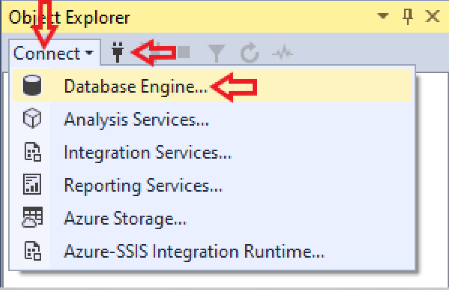
In the "Object Explorer" column (left side) click on "Connect" and select "Database Engine..."
Alternatively, you can just click the icon that looks like the end of a cord for an appliance. See image below.
Step 6
Selecting a SQL Server Intance:
In the next dialouge box that appears, you can select the name of the SQL Server Instance you would like to work with.
In the "Server name:" option, select the instance from the drop-down menu. See image below.
Hint: if nothing appears in the drop-down you will need to type the name of the SQL Server Instance in manually.
This will be the name you provided in step 18 during the SQL Server installation found in the previous article. "Install SQL Server 2022 Developer Edition"
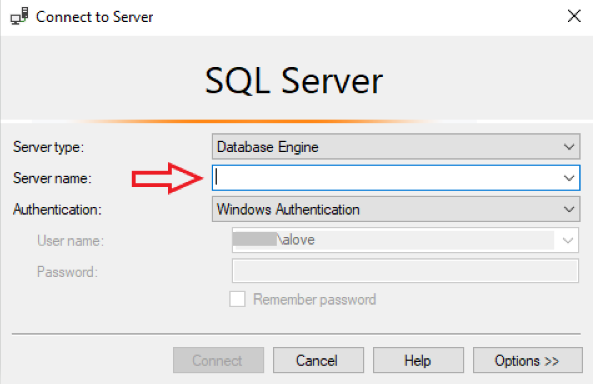
Finally, click the "Connect" button and your ready to start working with SQL Server and SSMS.
Key Takeaways
After completing this tutorial, you now understand how to install SQL Server Management Studio (SSMS) and connect it to your SQL Server instance. You learned why SSMS is the primary graphical tool used to manage SQL Server and how it simplifies database administration compared to working only from the command line.
Specifically, you learned how to:
- Understand the role of SQL Server Management Studio (SSMS) as Microsoft’s official SQL Server management interface.
- Verify that a SQL Server instance must be installed before installing SSMS.
- Download SSMS safely from Microsoft’s official website.
- Run the SSMS installer and complete the installation process.
- Launch SSMS and recognize its main interface components:
- Object Explorer for viewing server objects and databases.
- Query Editor for writing SQL and T-SQL commands.
- Template Browser for prebuilt query templates.
- Open the connection dialog inside SSMS.
- Select or manually enter your SQL Server instance name.
- Connect successfully to your local SQL Server instance.
At this stage, you now have both SQL Server 2022 and SSMS fully installed and connected. This means you’re ready to begin creating databases, writing queries, and practicing SQL in a real working environment.