Installing a Sample Database
Introduction
In this article, you’ll learn how to install the free AdventureWorks 2022 sample database provided by Microsoft. While the tutorial uses AdventureWorks as the example, the instructions are written in a general format that works with any SQL Server sample database. Because the process is based on restoring a .BAK backup file, you can also use these same steps to restore any SQL Server database from a backup (.bak) file.
Prerequisites
Before installing the AdventureWorks 2022 sample database on an on-premises SQL Server, you must have a running instance of Microsoft SQL Server 2022 (or newer) installed, since AdventureWorks2022 was built on SQL Server 2022 and cannot be restored on earlier versions. You also need SQL Server Management Studio (SSMS) installed to perform the database restore and manage the server. Ensure the SQL Server service account has permission to access the folder where the downloaded AdventureWorks2022.bak file is stored, otherwise the restore process will fail. Finally, verify that sufficient disk space is available for the database files and that your SQL Server instance is configured to allow database restores. Microsoft provides the official download files and installation guidance on their documentation page, which should always be used as the verified source for obtaining the correct AdventureWorks2022 backup file:
Before You Proceed
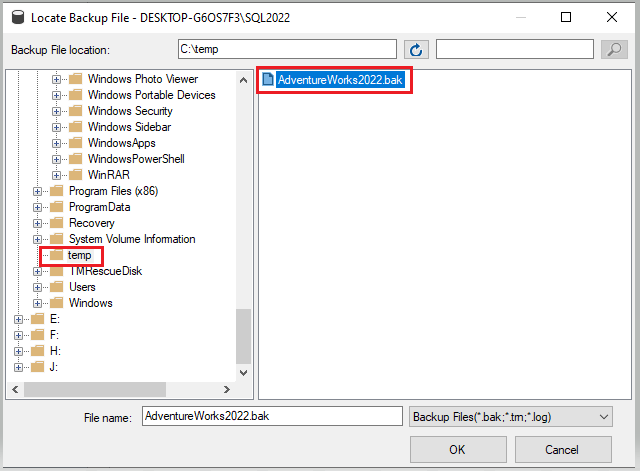
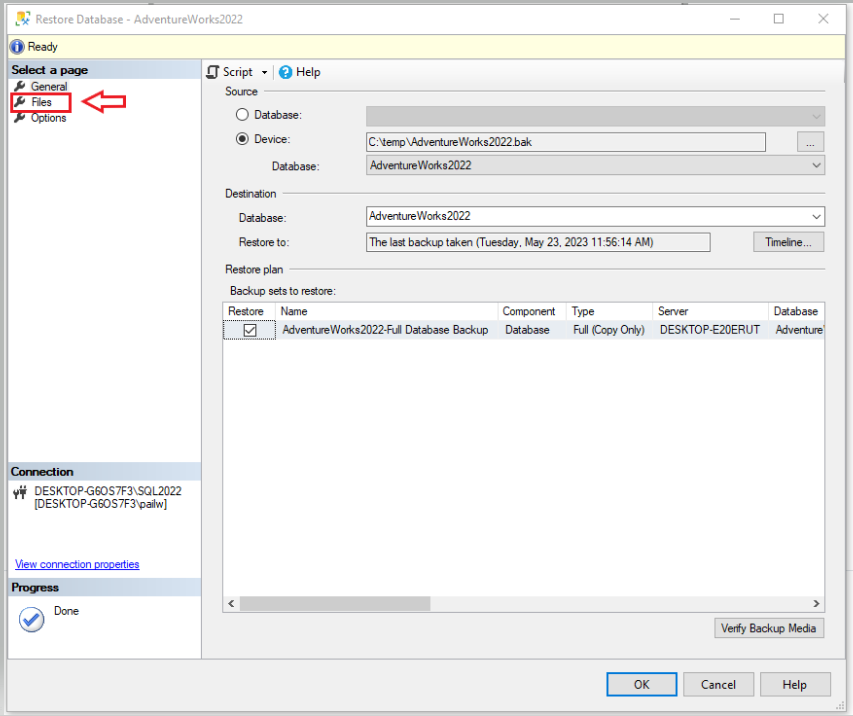
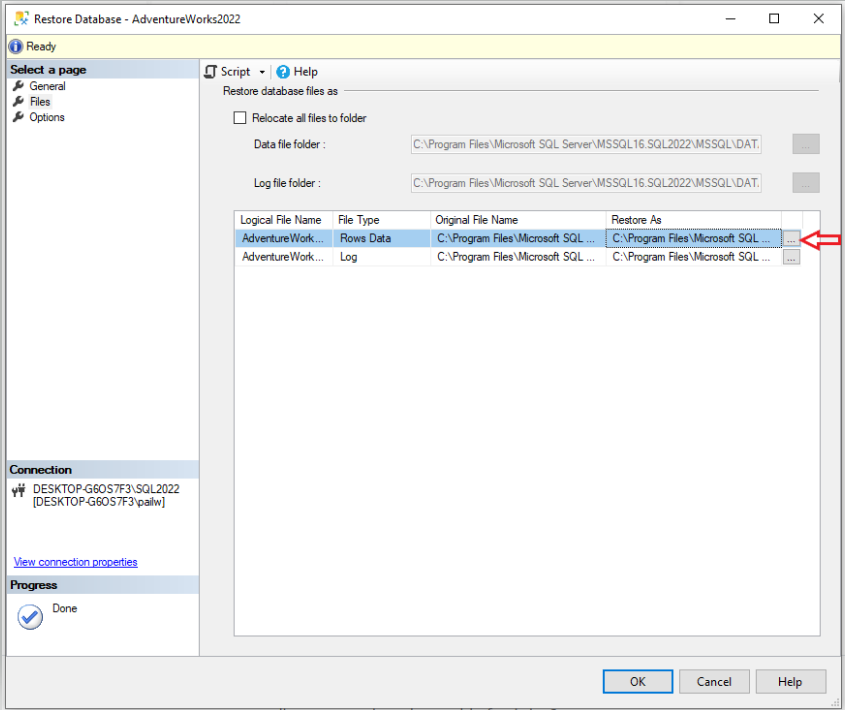
Be sure to review Figures 7–10 carefully, as they highlight optional steps you may choose to customize—such as changing the default data file locations. These adjustments are not required, so feel free to leave the settings as they are if preferred.
A problem that you may encounter when trying to install (restore) the AdventureWorks2022 sample database on a SQL Server 2019 instance, (or older version) is that you recieve an error message like the one in Figure.1.
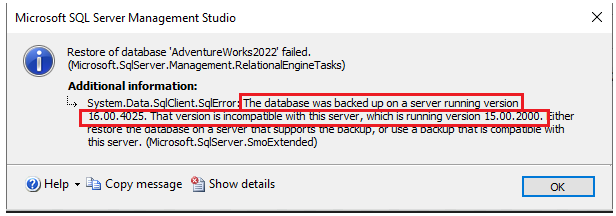
To overcome this issue, you are going to need to install SQL Server 2022. According to Microsoft, it's the only solution, at the time of this writing. If you haven't done so already, refer back to the article "Install SQL Server 2022 Developer Edition".
Finding the AdventureWorks2022 sample database
You can get a free copy of the AdventureWorks2022 sample database by clicking on this "direct download" link from Microsoft.
AdventureWorks2022 Sample Database
This will open a new dialogue box asking you to save the "AdventureWorks2022.bak" file/program to your computer.
At this point, select a folder to save the file to. It doesn't matter where, just as long as you remember where you saved it.
The file is about 200 mb, so it may take a few seconds to download, depending on your computer and internet speed. On my setup, it took about 20 seconds.
 Do not save this file to your "Downloads" folder. It's best to create a temporary folder on your drive C: or on a second drive in your computer.
For this example, I'm saving the file to a folder on drive C: called "myDownloads".
Do not save this file to your "Downloads" folder. It's best to create a temporary folder on your drive C: or on a second drive in your computer.
For this example, I'm saving the file to a folder on drive C: called "myDownloads".
Installing (Restoring) the AdventureWorks2022 sample database
Let’s start by clearing up some terminology before we begin. When setting up the AdventureWorks sample database, you’ll often see the terms install and restore used interchangeably — but technically, restore is the correct term. Because Microsoft provides AdventureWorks as a .bak backup file, SQL Server performs a database restore operation, not a traditional installation. In other words, SQL Server rebuilds the database from a backup rather than installing it like an application. In SQL Server, a database cannot be “installed”, it is either “created” or “restored.” That said, many tutorials use the word install as a friendlier, beginner-oriented way to describe the overall setup process. In this article, we’ll follow the technically correct approach and restore the AdventureWorks2022 sample database, while still using “install” occasionally in a general sense for clarity and SEO consistency.
This process is pretty easy, but if you know me, you know I'm going to complicate it. (Humor)
Open SQL Server Management Studio (SSMS) and connect to your SQL Server 2022 instance.
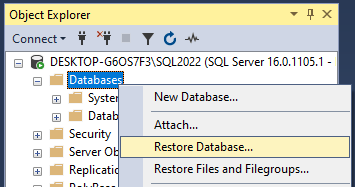
In your Object Explorer, right-click on "Databases" and select "Restore Database..." from the drop-down menu.
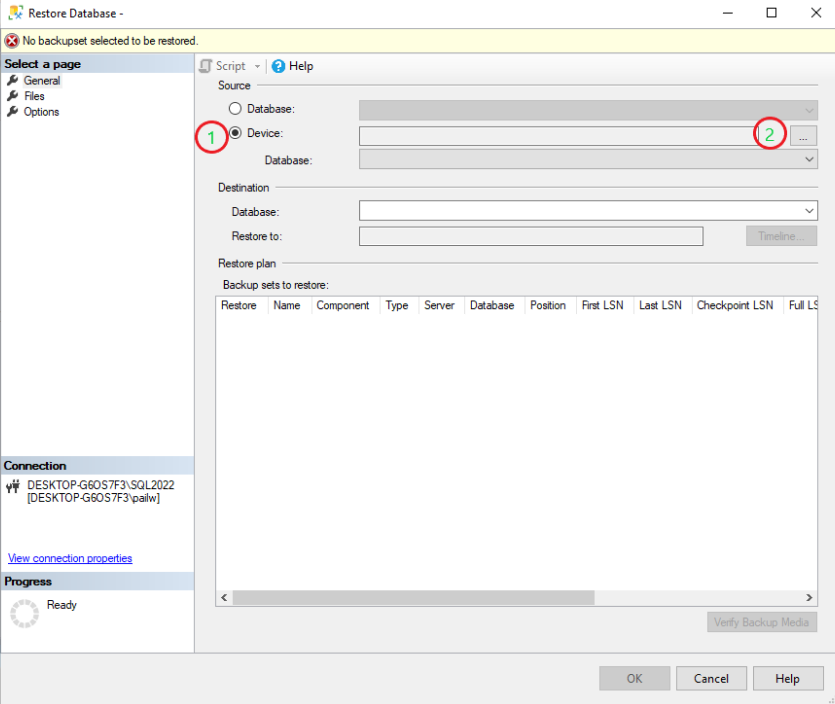
In the dialouge box that opens, select the "Device" radio button (#1) and click on the elipses (#2).
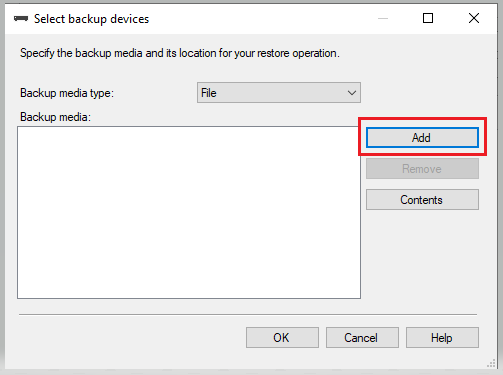
In the next dialouge box, click the "Add" button.
Navigate to the folder where you saved the AdventureWorks2022.bak file.
 As a general rule, you should not save your data files on drive C:.
Always save them to another hard drive in your computer. It's also a preferred practice to NOT keep the “mdf” and “ldf” files on the same drive.
As a general rule, you should not save your data files on drive C:.
Always save them to another hard drive in your computer. It's also a preferred practice to NOT keep the “mdf” and “ldf” files on the same drive.
If you refer back to Figure.7, you will notice that "pointed out" the "Files" option in the left pane. Click on that and let's change where my data files will be stored.
In the next dialouge box, shown in Figure.8, click on the elipses where the red arrow is in the image.
In the next dialouge box, navigate to the folder where you want to keep your data files.
In my example, I am relocating them to a seperate folder on drive E:
As you can see in the first red box in Figure.9. E:\SQL_All\SQL_2022_Data
In the second red box area, type the name and extension for sample database file. In my sample, I just used the name "AdventureWorks2022.mdf".
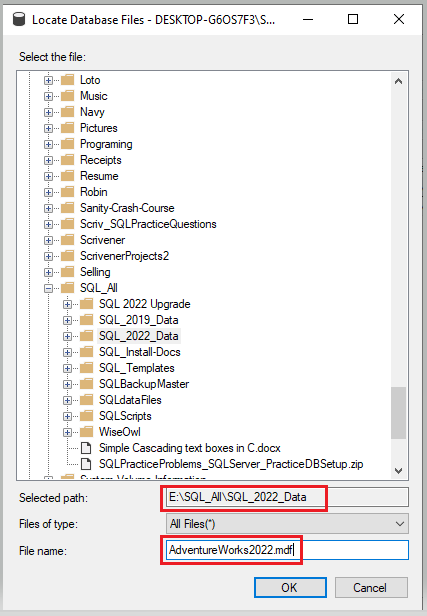
Repeat this process for the log files by clicking on the elipses next to the second line as shown in Figure.10 below.
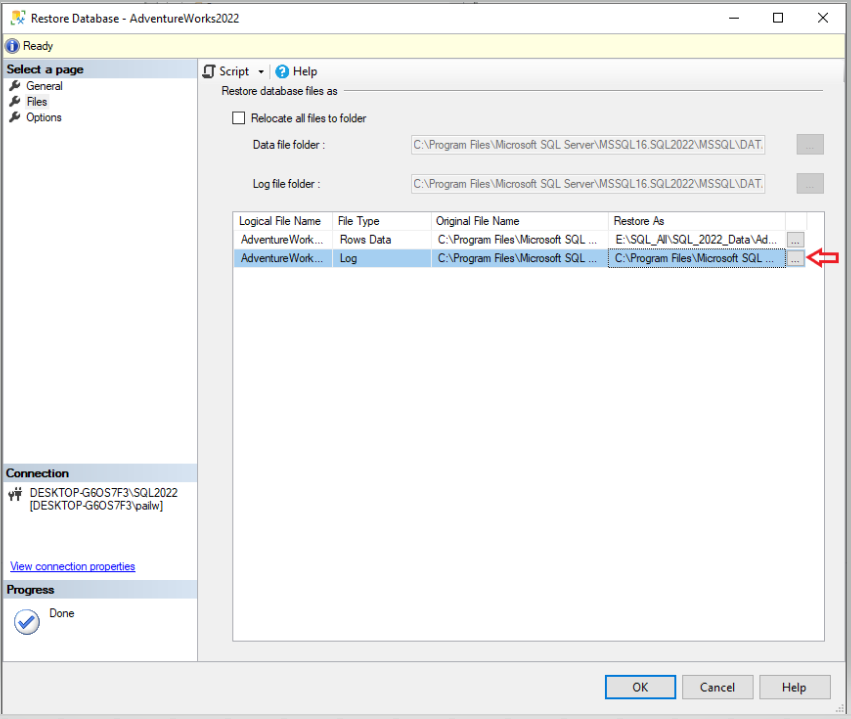
Remember, the log file name should include the word "log" and the extension should be "ldf".
AdventureWorks2022_log.ldf
When you have the folder and file names set, click "OK".
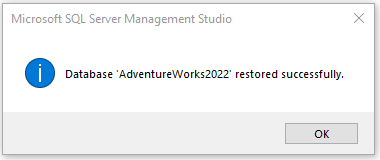
If all went well, you should see the following message.
Okay, I know you're ready to jump right in and start querying data, but there are some additional things you really
need to know before you start querying and modifying data.
The next rational step is to learn RDBMS and Set Theory. Those are explained in the next article found here.
On a side note, if you really want to start playing, go ahead. If you mess up the data, tables, views, etc. you can always drop your
sample database and restore it again at any time. Remember, it's just a sample database.
To drop a database, that is to delete a database, simply type this command in the SSMS query editor
and run the query.
USE master;
GO

DROP DATABASE AdventureWorks2022;
GO
Key Takeaways
By completing this tutorial, you have learned how to install (technically, restore) a SQL Server sample database using a backup file. You now understand how Microsoft provides AdventureWorks2022 as a .BAK file and how SQL Server rebuilds a database through the restore process rather than a traditional software installation. These steps apply not only to AdventureWorks but to restoring any SQL Server database from a backup.
Specifically, you learned how to:
- Understand the difference between installing and restoring a SQL Server database.
- Verify that SQL Server 2022 and SSMS must be installed before restoring AdventureWorks2022.
- Download the official AdventureWorks2022 sample database safely from Microsoft.
- Choose an appropriate storage folder for the .bak file.
- Open SQL Server Management Studio and launch the Restore Database wizard.
- Select a backup device and locate the .bak file.
- Restore a database from a backup file into your SQL Server instance.
- Optionally change default data (.mdf) and log (.ldf) file storage locations.
- Follow best practices for separating data and log files onto different drives.
- Confirm a successful database restore.
- Drop and re-restore the sample database if practice changes corrupt the data.
At this point, you now have a fully working AdventureWorks2022 sample database installed in your SQL Server environment. This gives you real-world data to practice queries, build database objects, and explore relational database concepts safely.